Payouts
Connect a Whop account to your partner workspace so you can receive commission payouts.
The Payouts page in Partner Panel is where you connect the account that receives your partner commissions. Payouts are processed through Whop, so setup involves connecting a Whop account, verifying your identity, and choosing how you want to withdraw your money.
Availability
Payouts is available to self-serve partners. If you do not see Payouts in the Partner Panel sidebar, your partner account type does not include it.
Before You Start
| You need | Why |
|---|---|
| A completed partner workspace | Payouts lives inside Partner Panel |
| A government-issued ID | Whop verifies your identity before it releases money |
| A phone with a camera | Identity verification uses a QR code and a quick face scan |
| Your business and address details | Whop asks for these when you activate payouts |
Step 1 — Open the Payouts Page
In Partner Panel, click Payouts in the sidebar.
If your payout account is not connected yet, you will also see a Connect an account to receive payouts banner at the top of Partner Panel. Clicking Set up takes you straight to Whop's setup flow — when you finish there, you are brought back to the Payouts page.
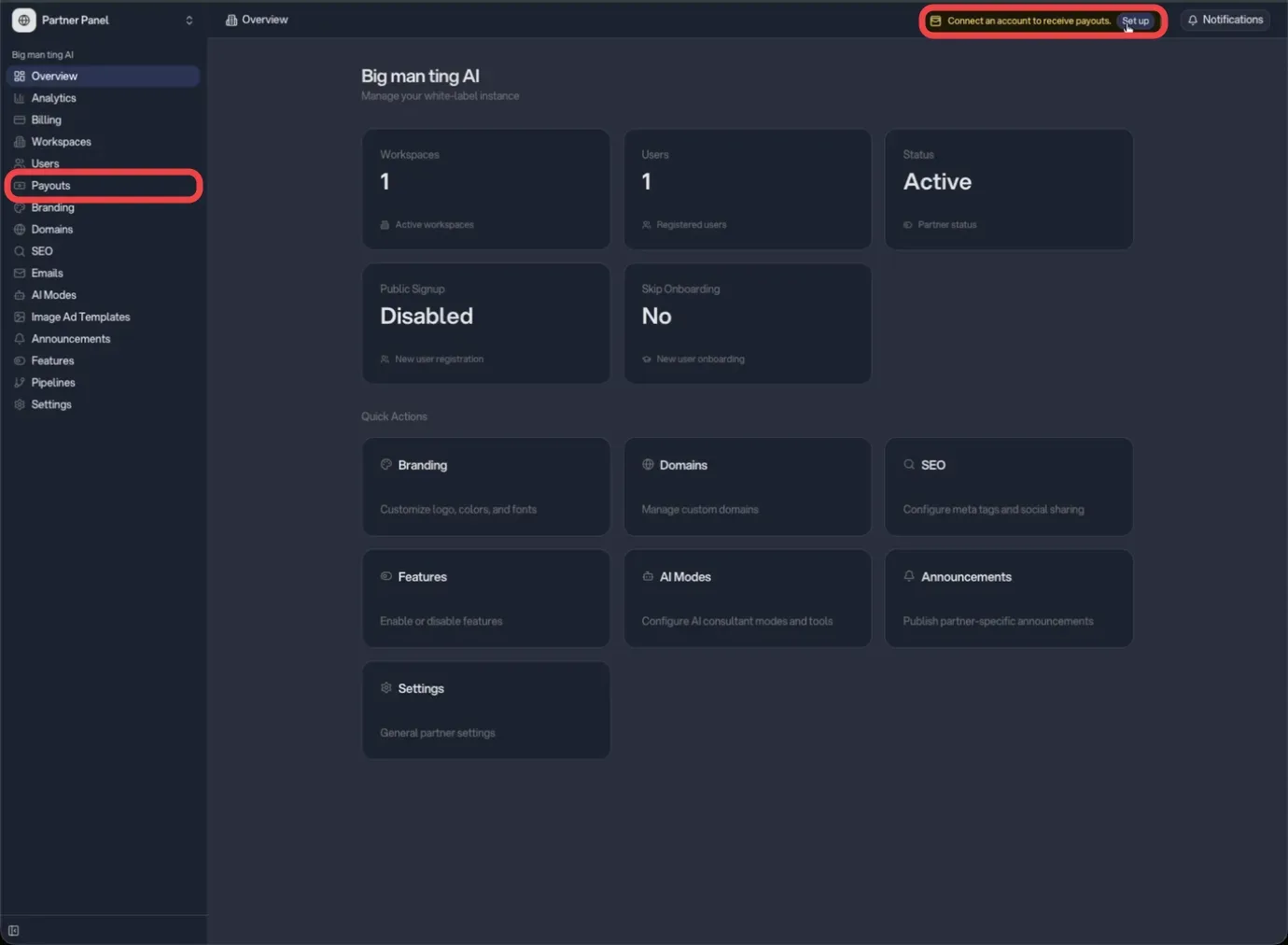
The Payouts page shows four areas:
| Area | What it shows |
|---|---|
| Payout Method | Whether your Whop account is connected, and its overall status |
| Payout Compliance | Your tax and identity verification status, plus your billing country |
| Upcoming Payout | An estimate of your next eligible payout |
| Payout History | Past payout batches processed by the platform |
Step 2 — Connect Your Whop Account
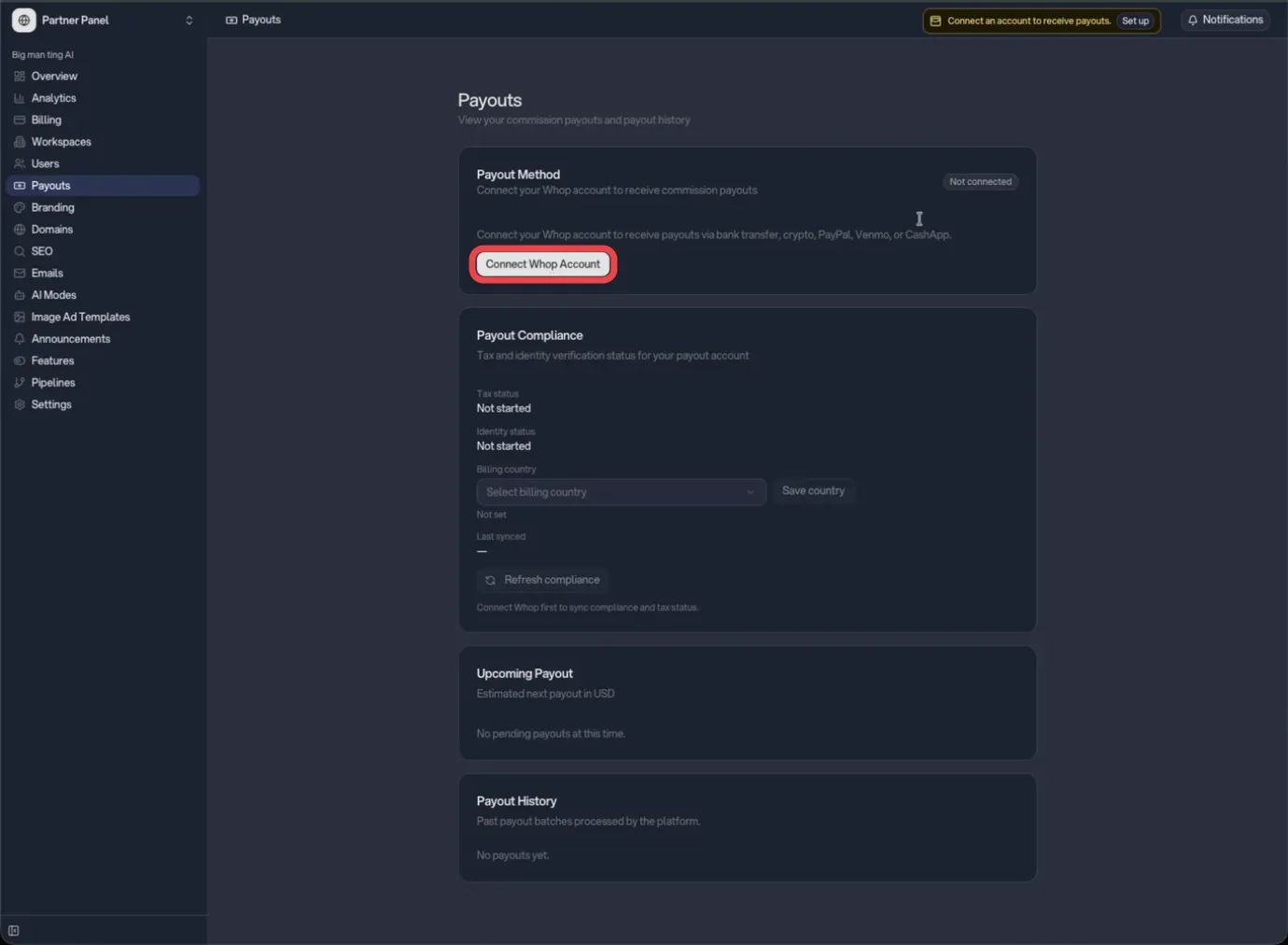
In the Payout Method card, click Connect Whop Account. Available payout methods vary by country and may include bank transfer, crypto, PayPal, Venmo, or Cash App.
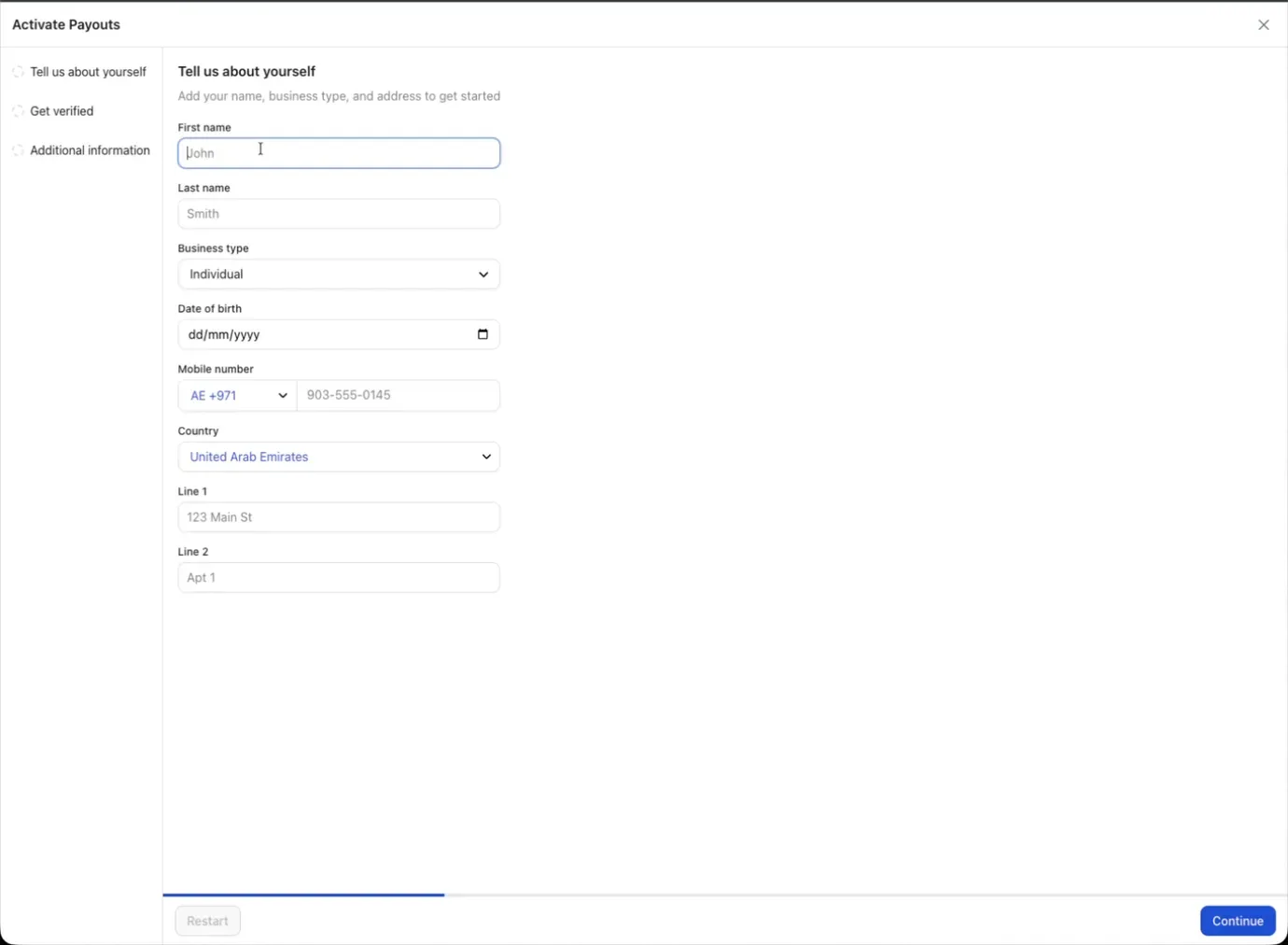
A Whop setup page opens. Under Tell us about yourself, fill in your name, business type, date of birth, phone number, country, and address, then continue.
Step 3 — Verify Your Identity
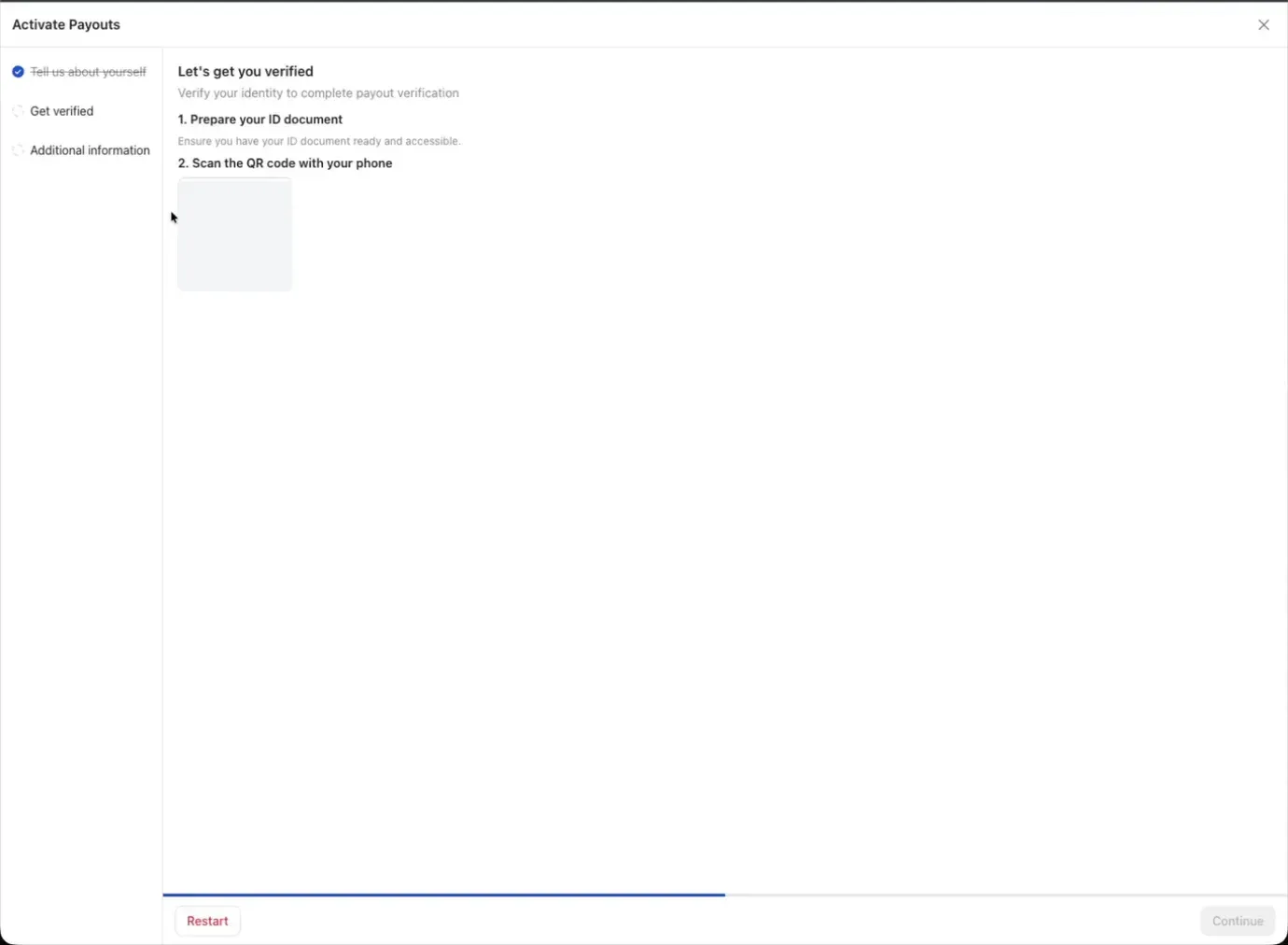
Next, Whop asks you to verify your identity:
- Have your ID document ready.
- Scan the QR code with your phone.
- Follow the prompts on your phone to upload your ID and complete a short face scan.
If Whop asks for Additional information after the scan, complete that step too. When you are done, you are returned to the Payouts page.
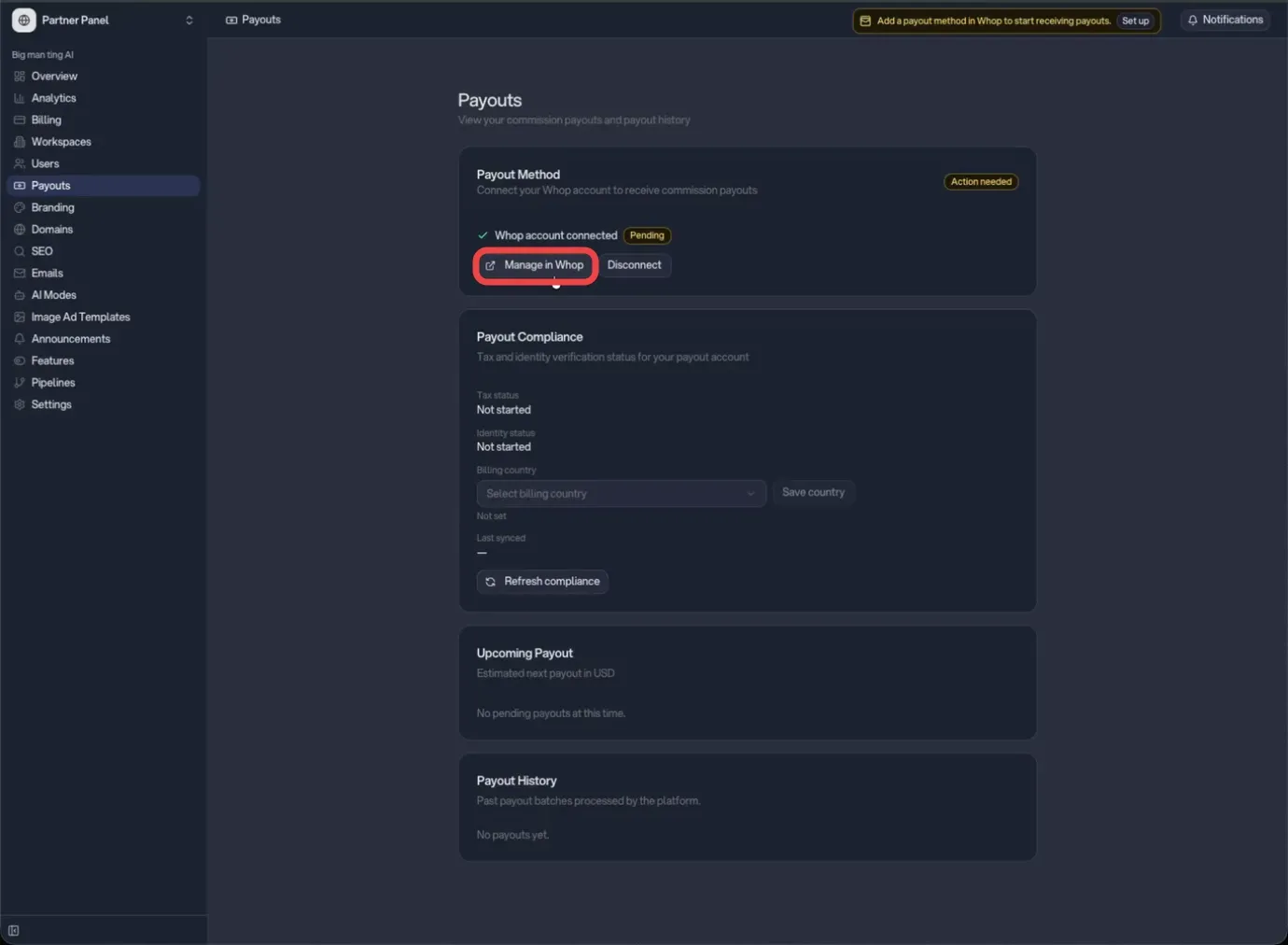
While verification is still processing, the Payout Method card shows Whop account connected with a Pending badge, and the status reads Action needed.
Step 4 — Add a Payout Method
After your Whop account is connected, you still need a payout method before payouts can be sent. If the Payouts page or the top banner shows Add payout method in Whop, click Set up — this opens Whop's guided setup where you add your payout method, and it is all that is required for your account to become Ready.
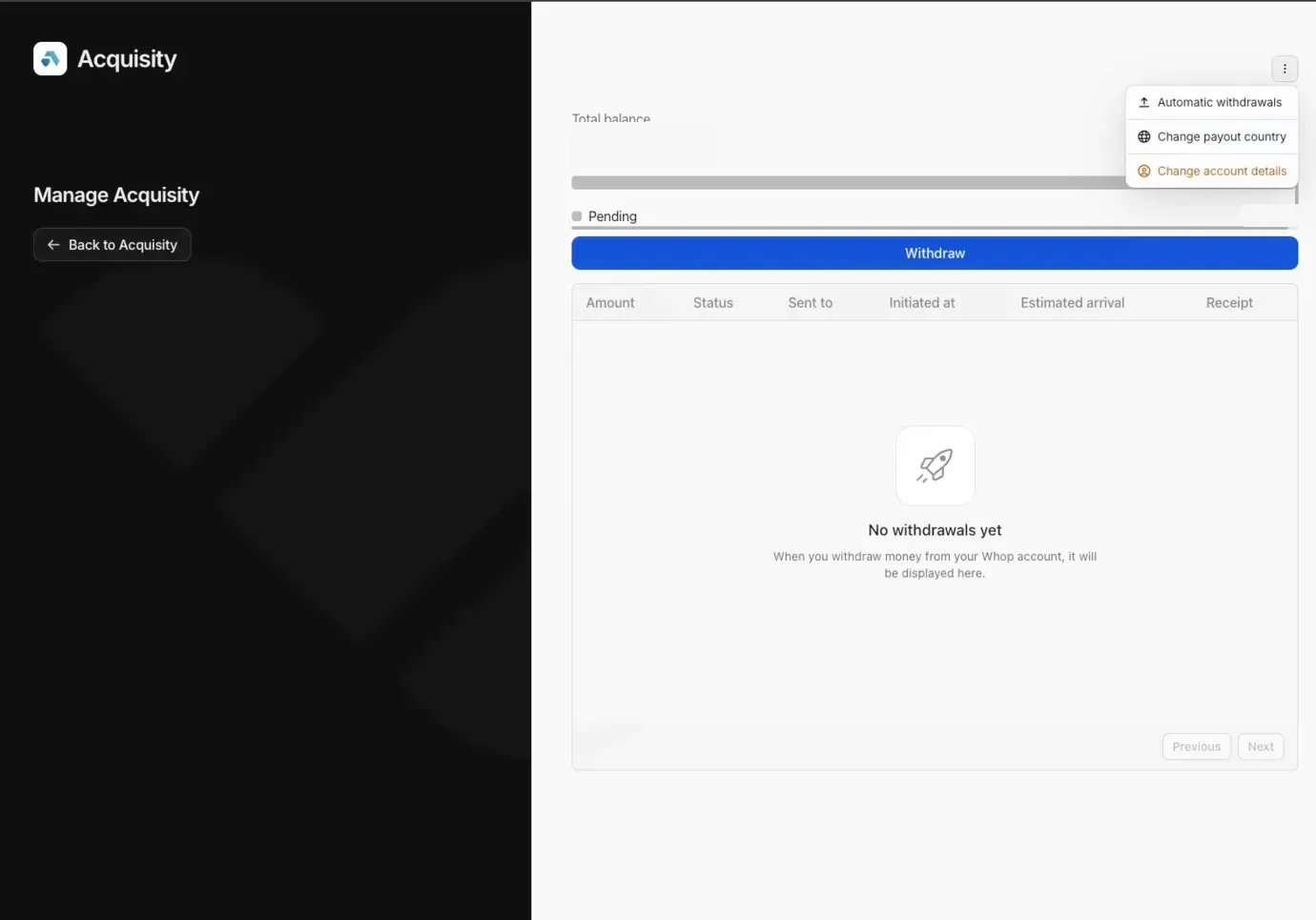
You can also manage everything from your Whop wallet. Click Manage in Whop in the Payout Method card to open your wallet, where you can see your balance and withdraw funds.
Optional — Automatic Withdrawals
If you want Whop to send your balance out on a schedule instead of withdrawing manually, open the menu in the top-right corner of your Whop wallet and go to Automatic Withdrawals.
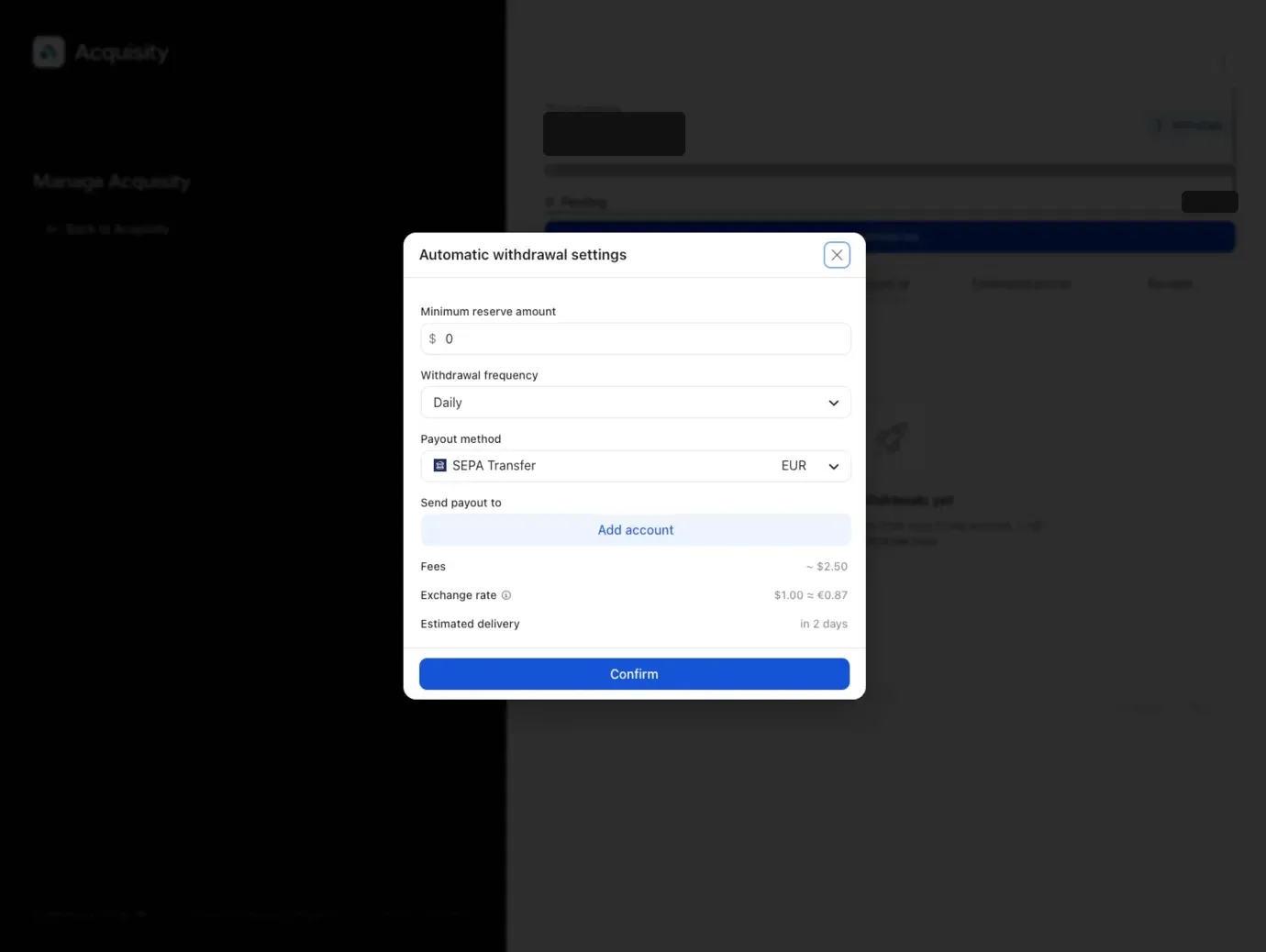
In the Automatic withdrawal settings, you can set a minimum reserve amount to leave in your wallet, a withdrawal frequency, and the destination account. Click Add account under Send payout to to add a payout destination.
Review before you confirm
Automatic withdrawals run on the schedule you pick (for example, daily), and each withdrawal can carry a fee and an exchange rate. Check the fees, exchange rate, and estimated delivery shown in the dialog before clicking Confirm. Automatic withdrawals are not required for your payout setup to be Ready.
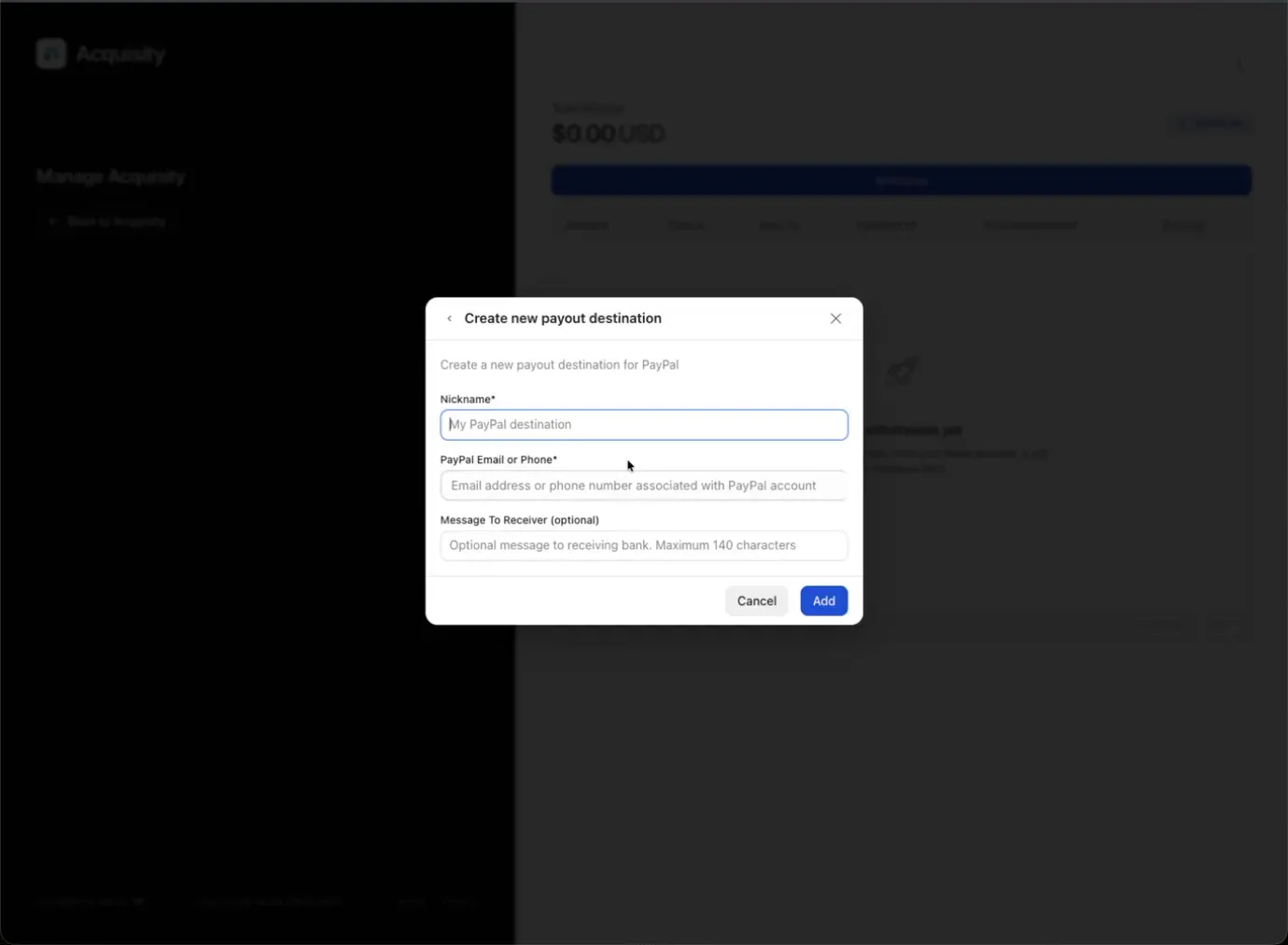
Whop supports many payout destinations, including bank deposit, SEPA transfer, PayPal, bank wire, and various crypto options.
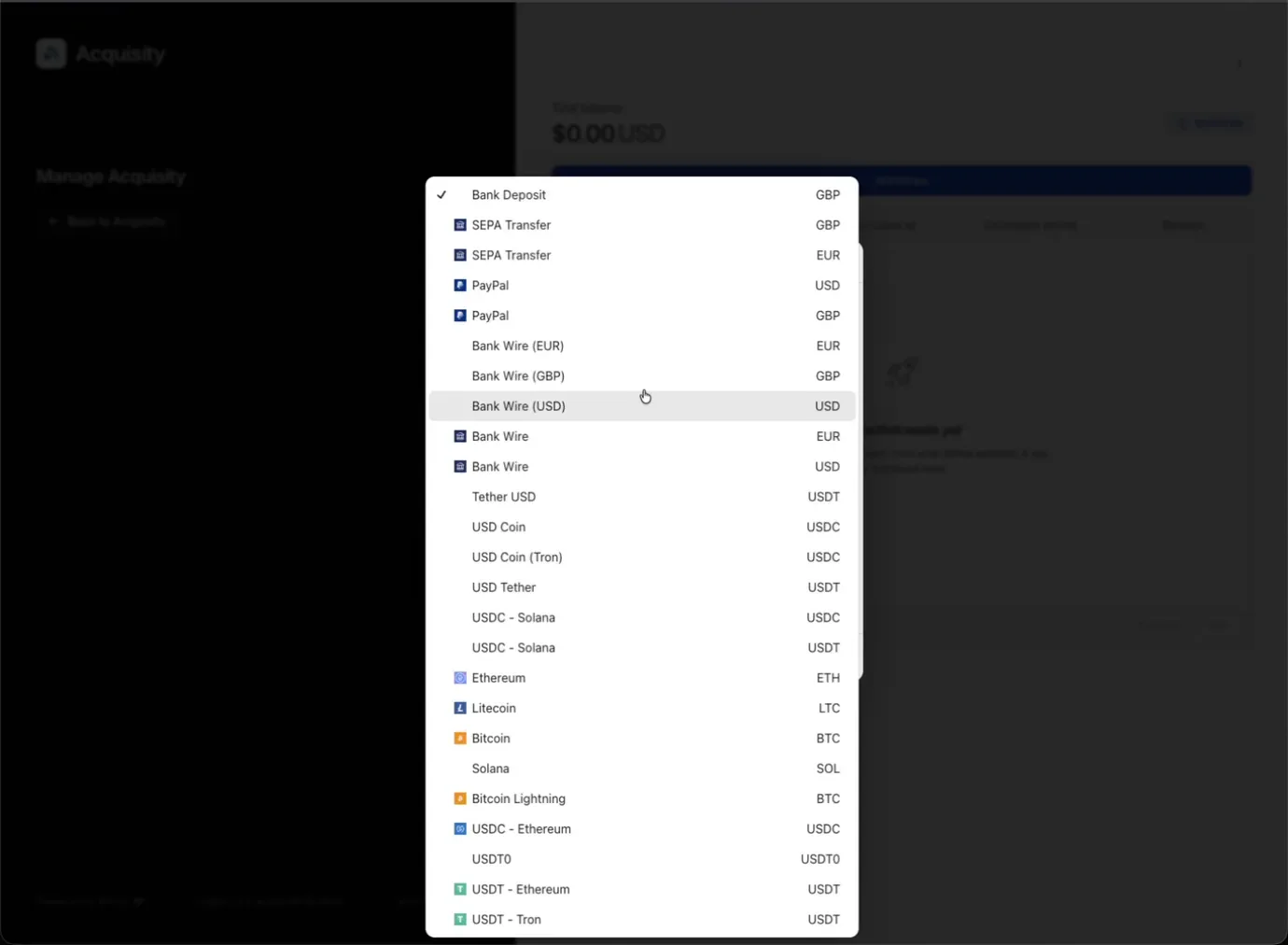
Pick your preferred method, enter the requested account details, and add it.
Step 5 — Confirm Everything Is Ready
Back on the Payouts page, your setup is complete when:
- The Payout Method card shows Ready.
- Whop account connected shows a Verified badge.
- Under Payout Compliance, Tax status and Identity status both show Verified.
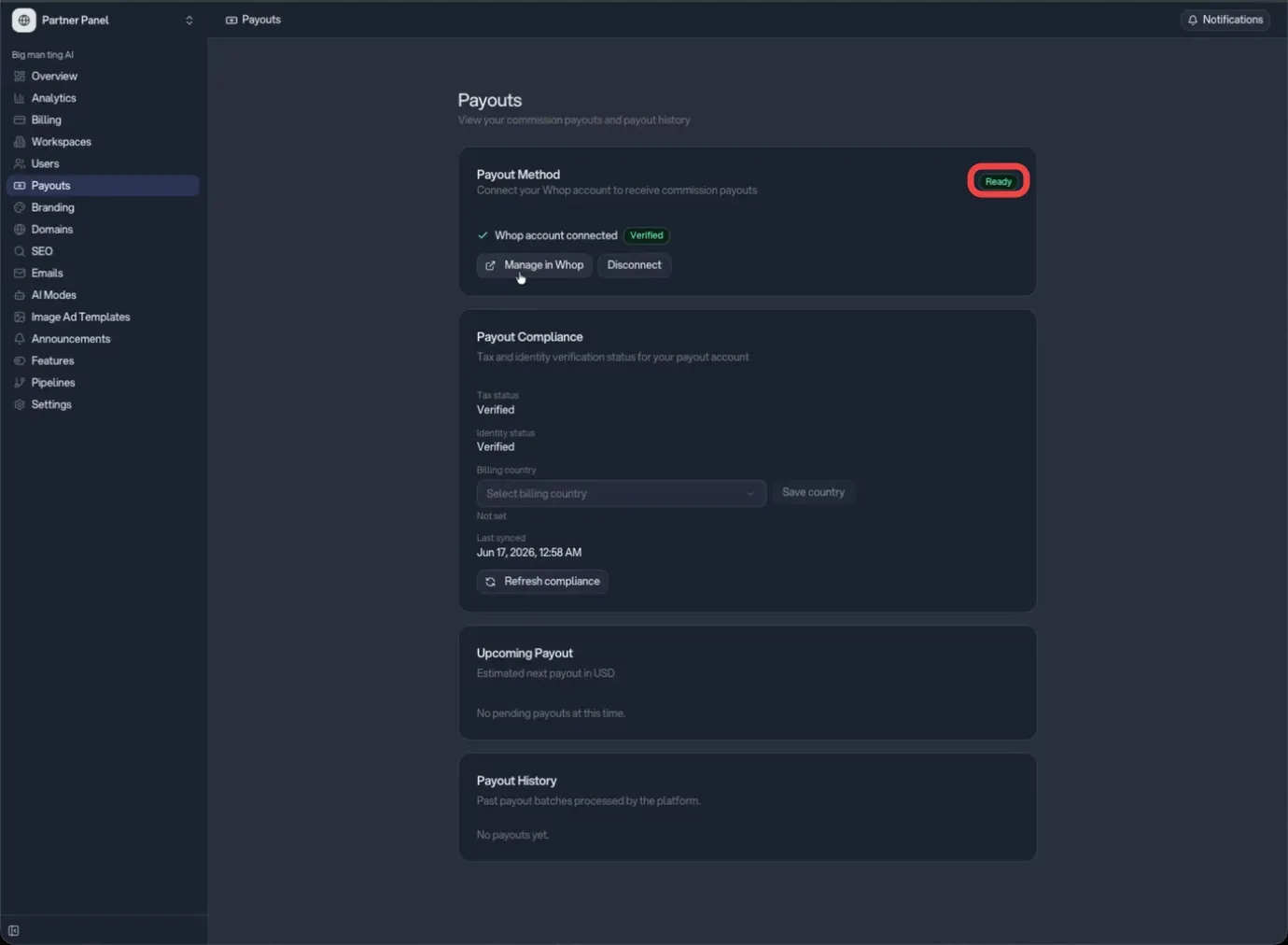
If the statuses look out of date, click Refresh compliance to re-sync them. You can also set your Billing country in the Payout Compliance card and click Save country.
Tip
Use the Manage in Whop button whenever you need to access your wallet or withdrawals — it takes you to the right place without a separate login.
After Setup
- Upcoming Payout shows an estimate of your next eligible payout — commissions appear here once they have matured and your payout setup is verified, so recent commissions may not show right away.
- Payout History lists past payout batches with their status and amounts.
- Use Disconnect in the Payout Method card if you ever need to switch to a different Whop account.