AI Agent
How the AI Agent reviews campaigns, shows recommendations, asks for approvals, and runs AI campaign management actions.
The AI Agent tab is where the campaign agent explains what it noticed, what it recommends, what it is waiting on, and what it already did.
This page focuses on AI campaign management: the part of the agent that reviews campaign performance and can recommend or run campaign changes, such as disabling underperforming email variants, adding more leads, or starting a replacement campaign and pausing the old one.
The Cold Email Agent is the whole outreach product: campaigns, leads, sequences, inboxes, analytics, and settings. AI campaign management is the specific behavior that reviews and manages campaign performance.
The short version
Recommended setup for most teams:
- Turn on AI campaign management.
- Set Optimize email variants to Run automatically.
- Set Add more leads, Start new campaigns, and Pause underperforming campaigns to Ask first.
- Leave Run actions when approvals expire off unless you are comfortable with approval requests running after 24 hours without another click.
This lets the agent handle the smallest, safest optimization automatically while asking before it spends lead credits or replaces a campaign.
What the agent reviews
The agent checks active campaigns roughly once per day. It is not live minute-by-minute monitoring.
When it reviews a campaign, it looks at signals such as:
- how many emails have been sent
- positive reply rate
- which variants are winning or losing
- whether the campaign has enough leads to keep sending
- whether the campaign has enough data to judge safely
- deliverability and bounce-risk signals
- booked call conversion after positive replies
If the campaign has too little data, the agent waits. If the campaign recently had a decision or approval request, cooldowns can also delay the next action. This is normal. It prevents the agent from making the same recommendation over and over.
Where to turn it on
There are two places, depending on what you are trying to change.
| You want to change... | Go here |
|---|---|
| Defaults for future campaigns | Settings > Cold Email Agent |
| One existing campaign | Open the campaign > Options tab > Cold Email Agent section |
Workspace settings set the default that campaigns start from. A campaign can then have its own Options. If a campaign is showing workspace defaults and you save its Options, that campaign gets its own campaign-specific settings.
The AI Agent timeline
The AI Agent tab is mostly a read-only history. It explains what the agent saw when it reviewed the campaign and what it thinks should happen next.
Each entry is a dated block. Newest entries appear first. A single entry can contain several cards.
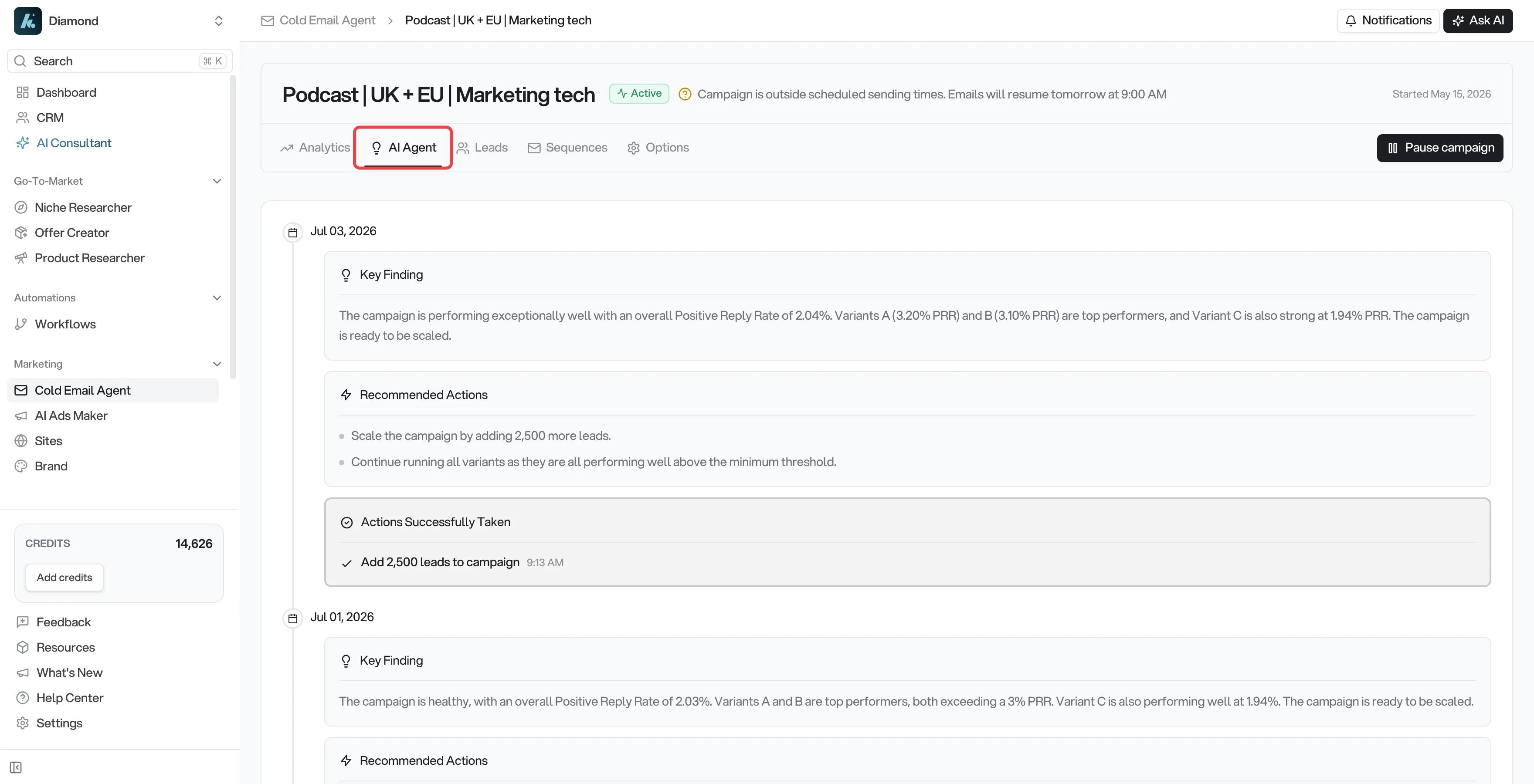
| Card | What it means |
|---|---|
| Key Finding | The agent's short summary of the campaign's current state. |
| Recommended Actions | Things the agent thinks are worth doing. |
| Pending Actions | Actions that have not run yet. They may need approval, more data, or a different setting. |
| Actions Successfully Taken | Actions the agent already completed. |
If the campaign has not produced enough useful data yet, the tab may show no insights.
The action types
| Action | Plain-English meaning |
|---|---|
| Disable variants | Turn off weak email variants so future sends go through stronger versions. |
| Add leads to this campaign | Add more prospects so the campaign can keep sending. |
| Pause campaign | Pause the current campaign as part of an enabled replacement-campaign action. The agent does not pause a campaign by itself. |
| Start new campaign | Create a fresh campaign, often for a new angle, list, or replacement campaign. |
| Flag deliverability | Warn about sender-health, bounce, spam, or related deliverability risk. |
| Wait for volume | Do nothing yet because there is not enough data to judge safely. |
An action stays under Pending Actions until the timeline records it as completed. Completed actions move to Actions Successfully Taken.
The timeline does not show separate Awaiting approval, Rejected, or Expired cards. Review an active approval from the campaign's approval banner or modal.
The master switch
The switch is called AI campaign management.
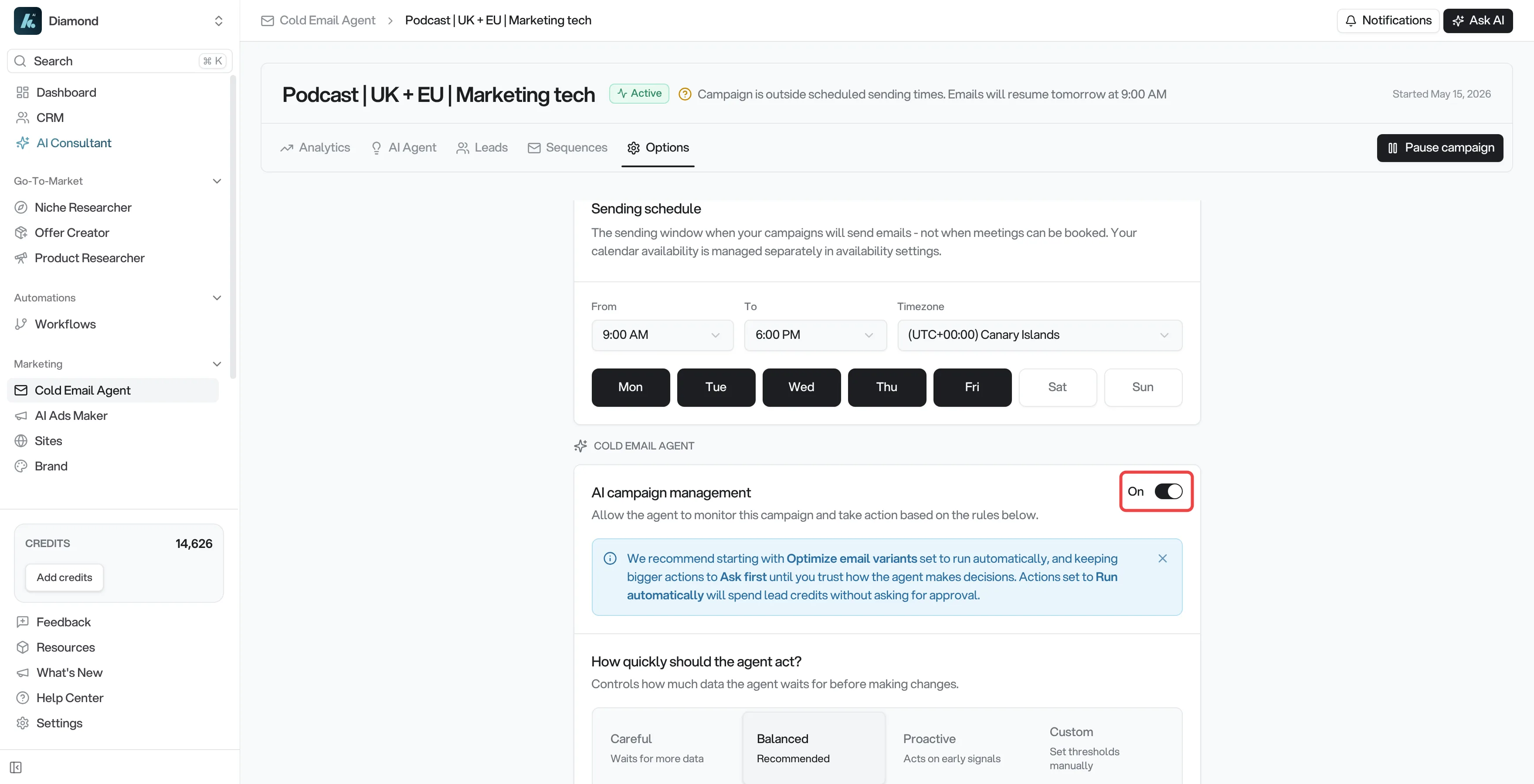
When it is off, the agent can still write insights and recommendations, but it cannot run campaign-management actions.
When it is on, the agent can act according to the mode you choose for each action.
If the switch says Coming soon or cannot be changed, your workspace does not yet have the activation feature for campaign-management actions. Existing saved preferences are retained, but you cannot change or activate them until the feature is available.
The three action modes
Each action has the same three choices:
| Mode | What it means |
|---|---|
| Run automatically | The agent can run this action without asking when the campaign qualifies. |
| Ask first | The agent can recommend the action, but it creates an approval request before doing anything. |
| Off | The agent will not run or request approval for this action. |
Run automatically is best for low-risk actions where the agent is cleaning up obvious performance waste.
Ask first is best for bigger actions where you want human review before spend or campaign structure changes.
Off is best when you want to keep that action fully manual.
What each setting means
| Setting | Plain-English meaning | Recommended mode |
|---|---|---|
| Optimize email variants | Disable underperforming email variants so future sends go through the stronger versions. | Run automatically |
| Add more leads | Find and add more prospects when a campaign is performing well or needs more volume. This can spend lead credits. | Ask first |
| Start new campaigns | Create a new campaign when the current campaign is not working, has run out of room, or has a winning angle worth expanding. | Ask first |
| Pause underperforming campaigns | Allow the current campaign to be paused when the agent also has an enabled replacement-campaign action. The agent does not pause a campaign by itself. | Ask first |
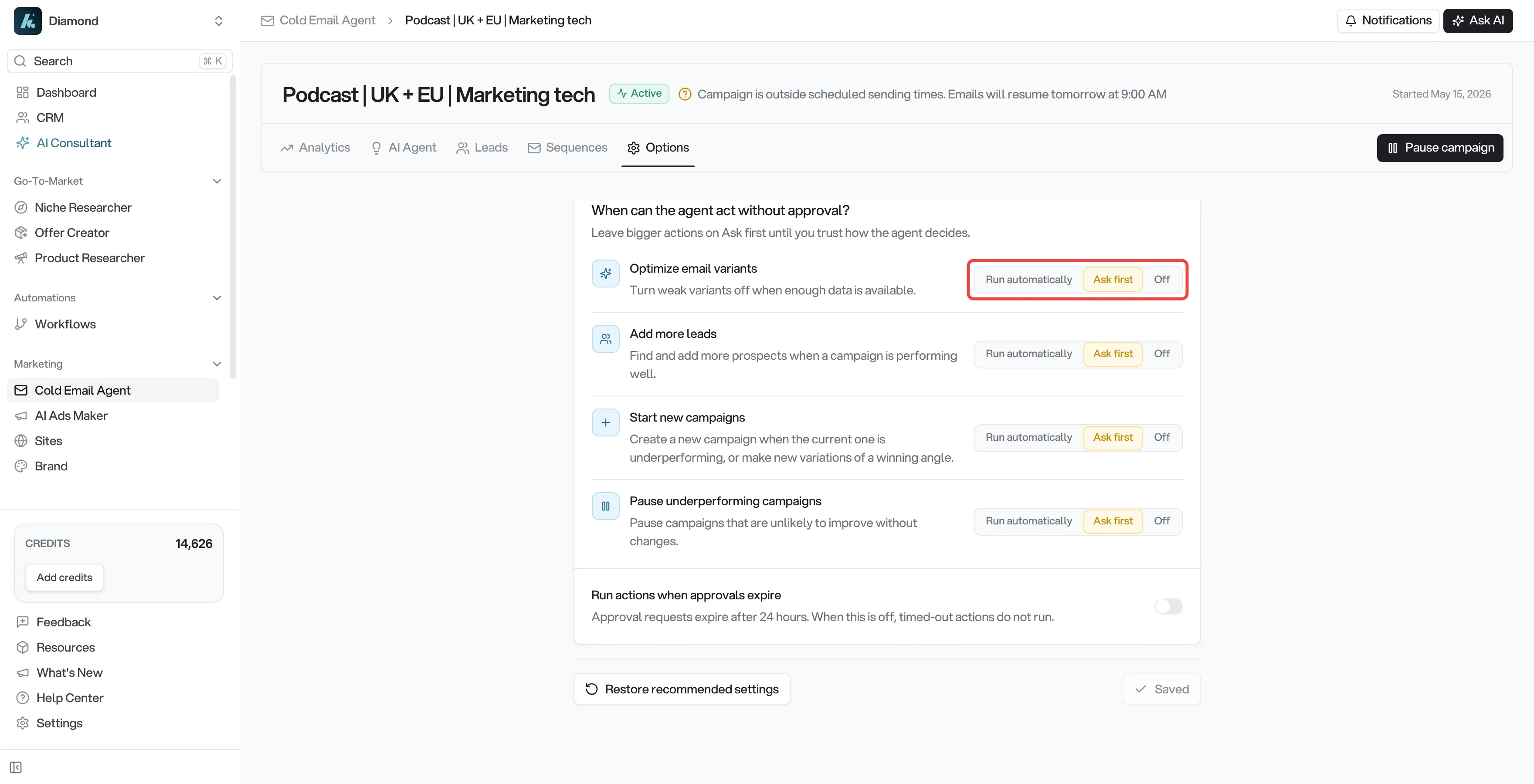
The product recommendation is deliberate: let the agent optimize variants automatically, but make it ask before it spends credits or replaces a campaign.
Speed presets
The How quickly should the agent act? setting changes the configurable evidence thresholds used during campaign analysis.
| Preset | What it does |
|---|---|
| Careful | Waits for more data before acting. Best if you want conservative decisions. |
| Balanced | Recommended default. Waits for a useful amount of evidence without being too slow. |
| Proactive | Acts earlier on less data. Best if you prefer faster iteration and accept more judgment calls. |
| Custom | Lets you manually edit thresholds. Use this only if you understand the tradeoff. |
Higher thresholds make configurable checks wait for more evidence. Lower thresholds let those checks run with less evidence. Pause and replacement-campaign actions also have a separate campaign-level readiness gate, so a preset does not guarantee those actions at its exact base-send count.
What an Agent Approval is
An Agent Approval appears when an action is set to Ask first and the agent thinks that action should happen.
For example, the agent might ask before it:
- adds more leads
- creates a new campaign
- pauses the current campaign while starting a replacement
- disables underperforming email variants, if you changed that action to Ask first
Approvals can appear from an in-app banner on the campaign page. You may also receive an approval email with a Review decision button.
Every approval modal has the same basic layout:
- Top badge: shows this is an agent action that needs review.
- Need help?: opens this help page.
- Title: says what the agent wants to do.
- Campaign details: shows the campaign method and niche or lead-source context.
- Reasoning area: explains the signal the agent noticed.
- Action area: shows exactly what will happen if you approve.
- Footer buttons: let you approve, reject, review later, continue, top up credits, or mark the warning as reviewed.
Approval buttons
| Button | What it does |
|---|---|
| Approve | Lets the agent run the recommended action after final checks. |
| Reject | Tells the agent not to run that action. The campaign stays as it is. |
| Review later | Hides the approval for now. You can reopen it from the approvals banner until it expires. |
| Continue | Used when the agent needs more information first, such as lead-search filters or a CSV upload. |
| Top up | Opens the credit top-up flow if the action needs more lead credits than you currently have. |
The app rechecks permissions, expiry, campaign state, and credits before it runs an approved action. If something changed since the approval was created, the app may ask you to resolve that first.
Approval modal types
These are the approval screens you may see.
Add more leads
You see this when the campaign is performing well or needs more volume.
The modal usually shows:
- positive reply rate compared with the healthy target
- active variant performance
- lead filters or lead-list information
- how many leads the agent wants to add
- whether the action needs lead credits
Click Approve if you are happy for the agent to add those leads. Click Reject if you want to keep the campaign as it is. Click Review later if you want to come back before the 24-hour expiry.
If the campaign does not have enough lead-source information, the main button may say Continue, Edit filters, or Edit or broaden filters instead of Approve. That means the agent cannot safely add leads yet. Choose or edit the lead source first, then review the approval again.
Add more leads from a CSV
You see this when a previous blocker was solved by uploading or choosing a CSV lead list.
The modal shows the lead list information and may remind you to verify imported emails. Click Approve if you want the agent to use that uploaded list to keep scaling the campaign.
Start a new campaign
You see this when the current campaign is underperforming, has run out of room, or has an angle worth expanding into a new campaign.
The modal usually shows:
- why the current campaign is not strong enough
- underperforming variant data
- the new campaign plan
- lead targeting for the new campaign
- how many leads the agent wants to use
- whether credits or contact capacity are enough
Click Approve if you want the agent to create the new campaign. The agent writes new messaging angles and prepares the campaign. Click Reject if you do not want a new campaign created.
Start a new campaign, needs lead source
You see this when the agent wants to start a new campaign but does not have safe targeting to use.
This often happens when the original campaign came from a CSV upload. A CSV does not always contain enough structured targeting for the agent to find similar leads by itself.
Use the main button to choose the next lead source. Depending on the campaign, you may see Continue, Edit filters, Edit or broaden filters, or a path to upload a CSV. The agent cannot finish this approval until that source is provided.
Start a new campaign from a CSV
You see this when a CSV lead list is ready for the new campaign.
The modal shows the uploaded lead list information. Click Approve if you want the agent to build the new campaign using that list. The new campaign appears in your campaign list once it is ready.
Pause this campaign and start a new one
You see this when the agent has two linked recommendations: pause the underperforming campaign and create a replacement.
The modal shows both actions. If a lead source is missing, the new campaign action is blocked until you provide one. Once you provide the source and approve, the agent pauses the old campaign and starts preparing the new one.
Disable underperforming email variants
In settings, this action is called Optimize email variants. In an approval modal, the specific change is shown as Disable underperforming email variants.
You see this when some email variants are clearly weaker than the others.
The modal shows:
- which variants are weak
- which variant is still active or winning
- why the agent thinks disabling the underperforming variants will help
Click Approve if you want future sends to use the stronger variants only. Sending continues. You can re-enable variants later from the Sequences tab.
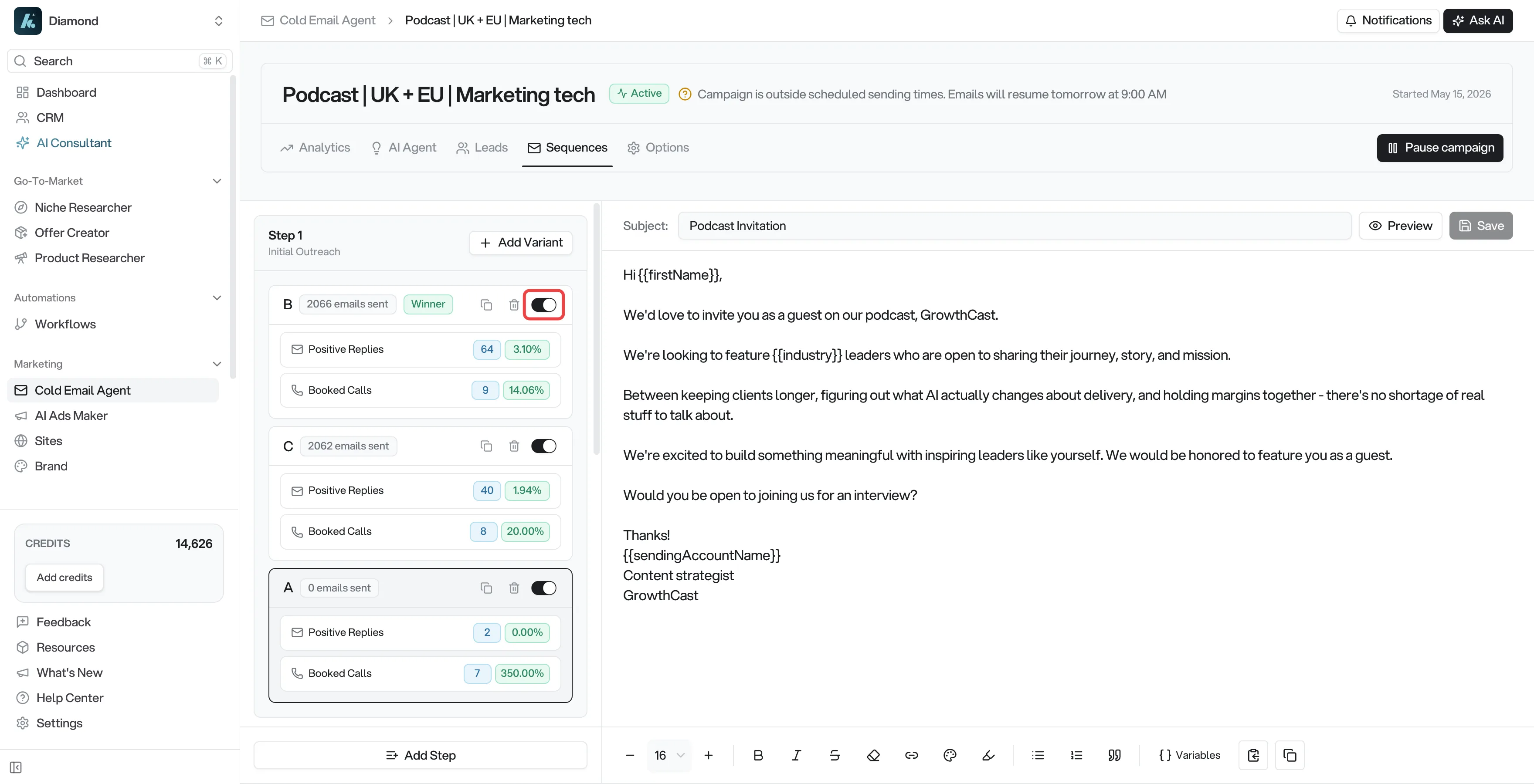
If the approval would disable every variant, approval is blocked. A campaign needs at least one active variant to keep sending.
Timeline recommendations are separate
Flag deliverability and Wait for volume can appear in the AI Agent timeline, but they are not Agent Approval modal types.
Approval expiry
Approvals expire after 24 hours.
The setting Run actions when approvals expire controls what happens when nobody responds in time:
- Off: timed-out approvals expire and do not run.
- On: ordinary approvals can run automatically when the 24-hour timer ends.
There is an important exception: if an approval is blocked because the agent needs lead-source information, such as search filters or a CSV, it still needs you to provide that information first. The agent cannot invent missing lead targeting just because the timer ended.
FAQ
Why do I still see approvals if AI campaign management is on?
Because one or more actions are set to Ask first. The agent can recommend those actions, but it waits for your decision before running them.
If you want an action to run without approval, change that action to Run automatically. We recommend keeping Add more leads, Start new campaigns, and Pause underperforming campaigns on Ask first until you trust how the agent behaves.
Why does the button say Continue instead of Approve?
Continue means the agent needs something from you before it can run the action. This is usually lead-source information, such as search filters or a CSV upload.
Will approving spend lead credits?
Approving can spend lead credits when the action adds leads through AI Lead Search. The modal shows credit information before approval. CSV uploads do not use lead credits, but they still count toward workspace contact capacity.
Can I reject safely?
Yes. Reject tells the agent not to run that recommendation. The campaign stays as it is.
Can I change my mind after approving?
Sometimes. You can usually undo practical campaign changes manually, such as re-enabling variants or resuming a campaign. But generated leads, spent credits, and newly created campaign records may already exist. Review larger actions before approving.
Why did the agent not make any recommendation today?
The agent checks active campaigns roughly once per day, but it may wait if the campaign has too little data, recently had an approval, is inside a cooldown, or has no eligible action to suggest.
Why does the AI Agent tab show a recommendation, but nothing happened?
Either AI campaign management is off, the action is set to Ask first, the action is set to Off, or the campaign is waiting for more data or missing lead-source information.
If something's not right
The tab has been empty for days
Check whether the campaign has sent enough emails. If very few emails have gone out, this is a sending or schedule issue, not an agent issue.
The agent is acting on its own
Open Options > Cold Email Agent and check the action modes. Any action set to Run automatically can run without approval.
The agent keeps asking before it acts
That action is set to Ask first. This is the safer setting for lead credits and campaign replacement.
The agent wants to disable a variant I want to keep
You can re-enable or edit variants from the Sequences tab. If you want the agent to ask before disabling variants in the future, set Optimize email variants to Ask first.