DFY warmup & reconnect errors
What to expect during a DFY inbox's first two weeks, when 0 warmup emails is normal, how to check inbox status, and what to do when Reconnect stays stuck.
You bought done-for-you (DFY) inboxes and now something looks off — the warmup counter says 0, the status badge is red, or a reconnect seems stuck. This page walks through what's normal, what isn't, and exactly what to do at each stage.
What to expect from a new DFY inbox
Every DFY inbox goes through an initial warmup period of 2 weeks starting the moment it's created. During that window:
- The Status column shows Warmup (yellow).
- The flame icon in the Warmup column is orange.
- The inbox sends and receives small numbers of warmup emails to build its sending reputation.
- It cannot send campaign emails yet. You can select it while building a campaign, but you can't launch the campaign until every selected DFY inbox finishes warmup. The launch error tells you the exact date. To launch sooner, remove the warming inboxes from the campaign's sending accounts. You also can't add a warming inbox to a campaign that's already live.
After the 2 weeks are up, the status turns Active (green) and the flame turns green — the inbox is ready for campaigns.
Is it normal to see zero warmup emails?
Seeing zero in the Warmup emails column — and a dash (–) instead of a health score — does not automatically mean something is broken:
- First 24–48 hours: warmup starts slowly, often with just a handful of emails per day. A zero on day one or two is expected. Warmup also sends on weekdays only, so a weekend can stretch this.
- Health score: the score only appears once enough warmup data has been collected. A dash on a brand-new inbox is normal — give it a few more days.
- Ramp-up: volume builds gradually over the 2-week window rather than jumping to full volume immediately.
When it's not normal: if the counter is still 0 after 48 hours and the inbox is enabled, check the Status column. A Paused inbox sends nothing — re-enable it. An Error inbox needs a reconnect. If the status looks healthy and warmup still never starts, contact support with the inbox address.
Checking your inbox status
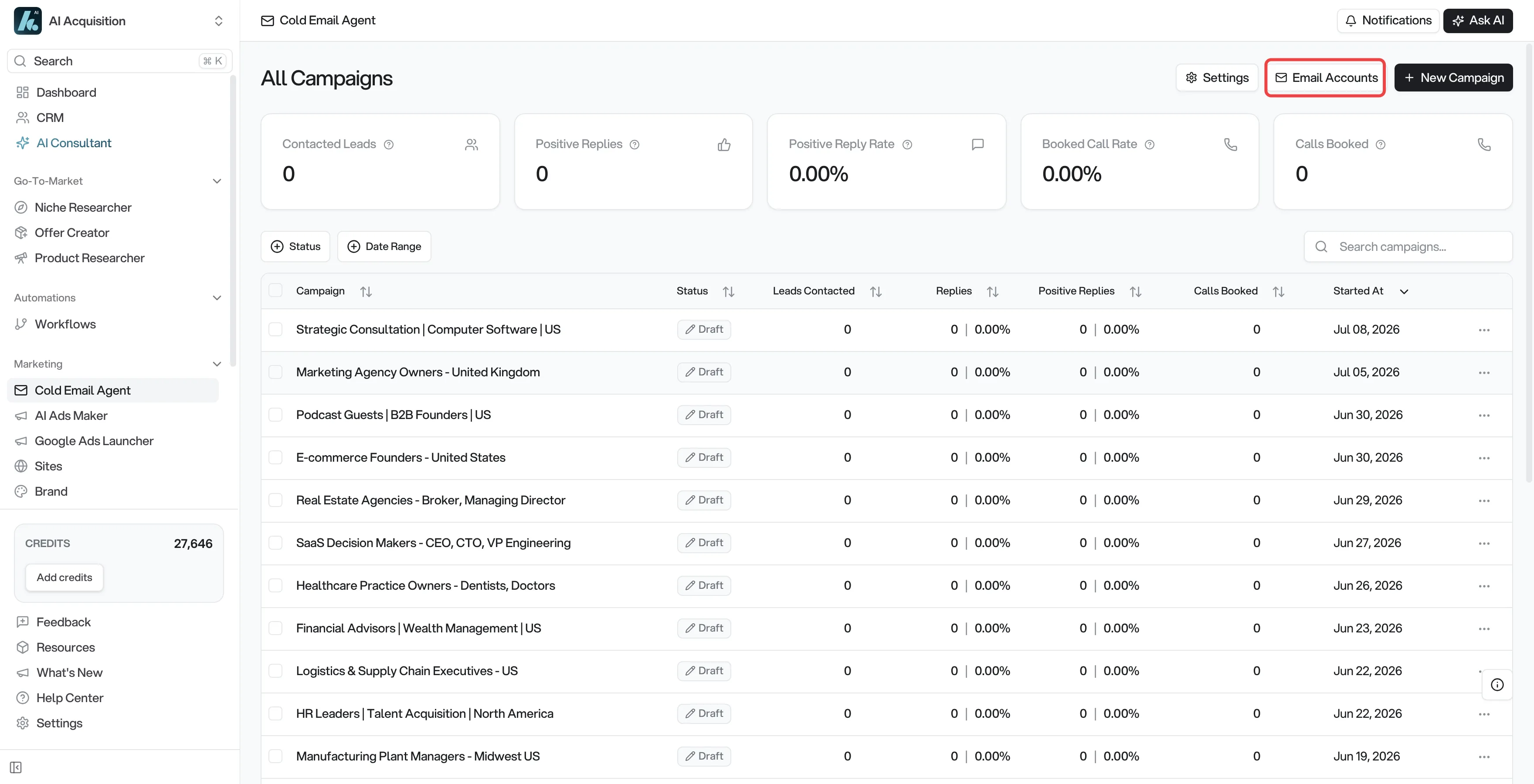
Open the Cold Email Agent
In the left sidebar, click Cold Email Agent (under Marketing).
Open Email Accounts
At the top of the campaigns page, click Email Accounts.
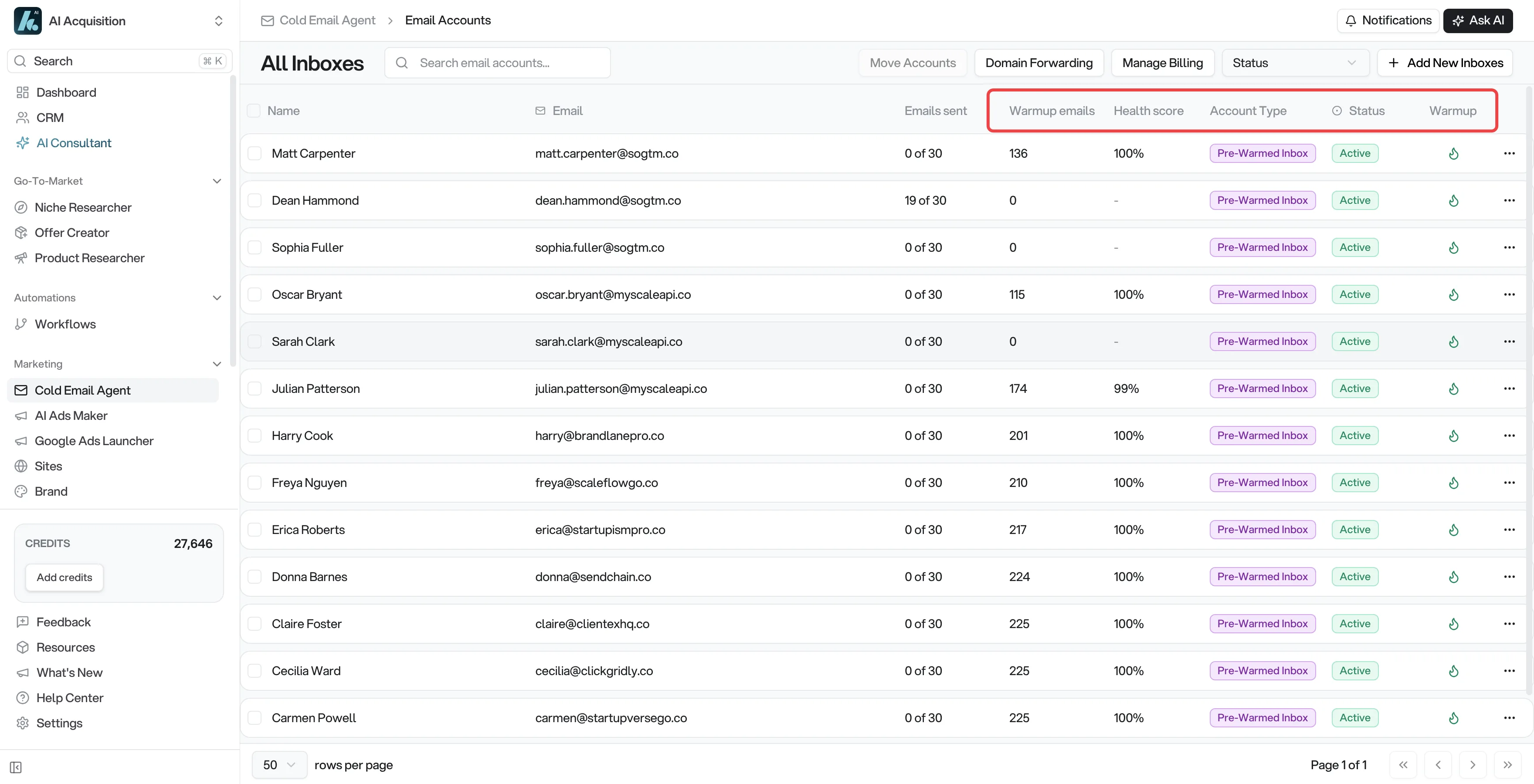
Read the Status column
Each inbox row shows one of these statuses:
| Status | What it means | What to do |
|---|---|---|
| Active (green) | Connected and sending normally. | Nothing. |
| Paused (yellow) | You turned this inbox off. No campaign or warmup emails go out. | Re-enable it when ready. |
| Error (red) | The provider reported a problem with this inbox, most often a broken connection. | Click the row and use Reconnect. |
| Warmup (yellow) | Still in the initial 2-week warmup. | Wait for warmup to finish. |
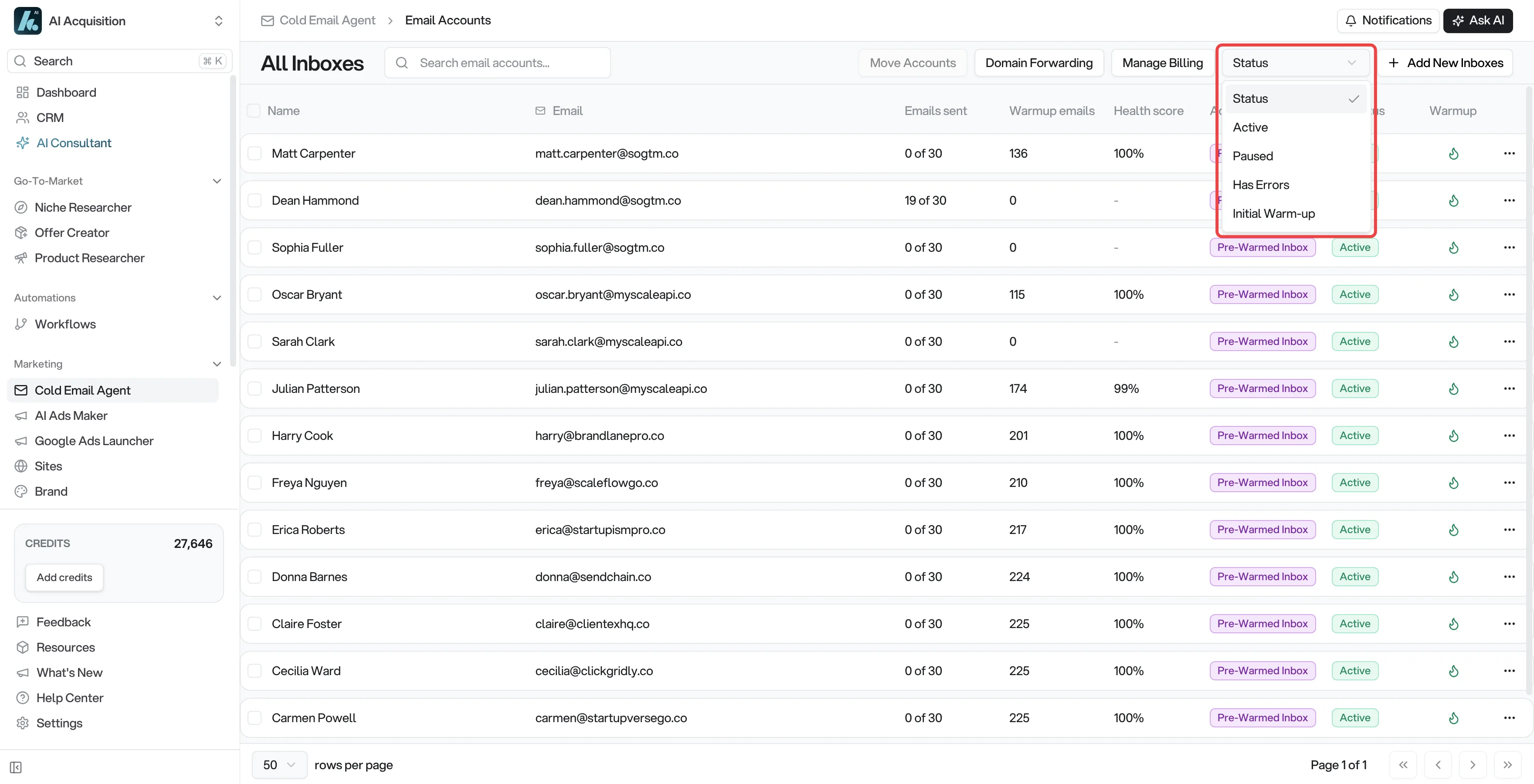
To find problem inboxes quickly, use the Status filter at the top-right of the table and choose Has Errors. You can also filter by Initial Warm-up to see which inboxes are still warming.
Reconnecting an inbox in Error
An Error status usually means the connection to the email provider expired or was revoked. Fixing it is a one-click action:
Open the inbox panel
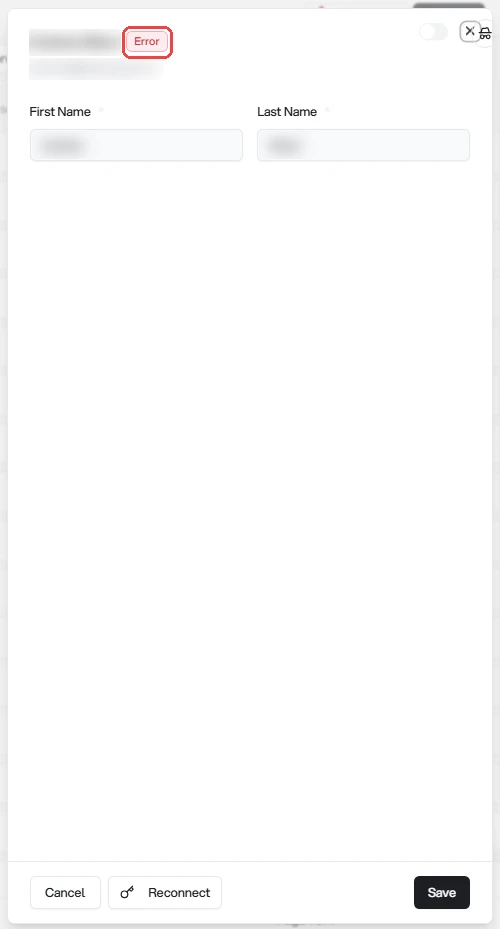
Click the row of the errored inbox. A settings panel opens on the right, with the inbox's current status shown next to its name.
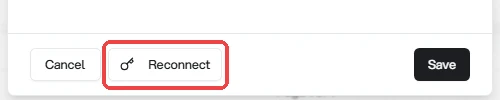
Click Reconnect
The Reconnect button appears at the bottom of the panel only when the inbox is in Error status (and only for inboxes managed by the platform).
Wait for confirmation
You'll see a confirmation message: "OAuth reconnect initiated. This may take up to 48 hours to complete." Most reconnects finish much faster, but 48 hours is the outer limit.
While the reconnect is running, the button changes to Reconnect in Progress and you can't start another attempt — the platform blocks a second reconnect until the current one finishes or expires (up to 48 hours). Once the reconnect succeeds, the status returns to Active. If the inbox is still inside its initial 2-week warmup window, it shows Warmup instead, which is normal.
If Error persists after 48 hours
If the inbox is still in Error 48 hours after you clicked Reconnect, the issue is on the provider side and needs a human to look at it. Contact support and include:
- The email address of each affected inbox (copy them from the Email Accounts table).
- When the inbox first went into Error, and when you clicked Reconnect.
- Whether the panel currently shows Reconnect or Reconnect in Progress.
What support can do for you
When you escalate a stuck inbox, the support team can investigate the failed connection, tell you whether it's a temporary provider-side issue worth waiting out, and arrange a repair or replacement inbox if it can't be fixed.
Escalation only affects the specific inboxes you report.
Related
- Inbox warmup — how warmup and health score work in detail
- Health & troubleshooting — every status explained, plus the burnt-inbox playbook
- Buying inboxes — DFY vs pre-warmed inboxes
- Email Accounts FAQ → fixing an account with an error
- Email Accounts FAQ → warmup shows 0 emails