Lead Magnet Campaigns
Deliver a resource (a PDF, image, or video) to interested prospects instead of booking a call.
A Lead Magnet campaign is built around sharing something valuable, like a pricing guide, a case study, or a short video. It doesn't push for a meeting. When a prospect replies with interest, your AI SDR sends them the asset you've attached, then follows up later to see what they thought. Every other campaign type steers interested replies toward booking a call; a Lead Magnet campaign steers them toward receiving your resource.
Use it when your goal is to get a specific asset into prospects' hands and start the conversation from there.
Resources that tend to work well as lead magnets:
- Industry benchmark report
- Opportunity calculator
- Template or sequence pack
- Competitor teardown
- One-page growth blueprint
- Case study
Turning a campaign into a Lead Magnet campaign
You choose the campaign type from an existing campaign's Options tab. It isn't offered in the campaign creation wizard, so set it on a campaign you've already created.
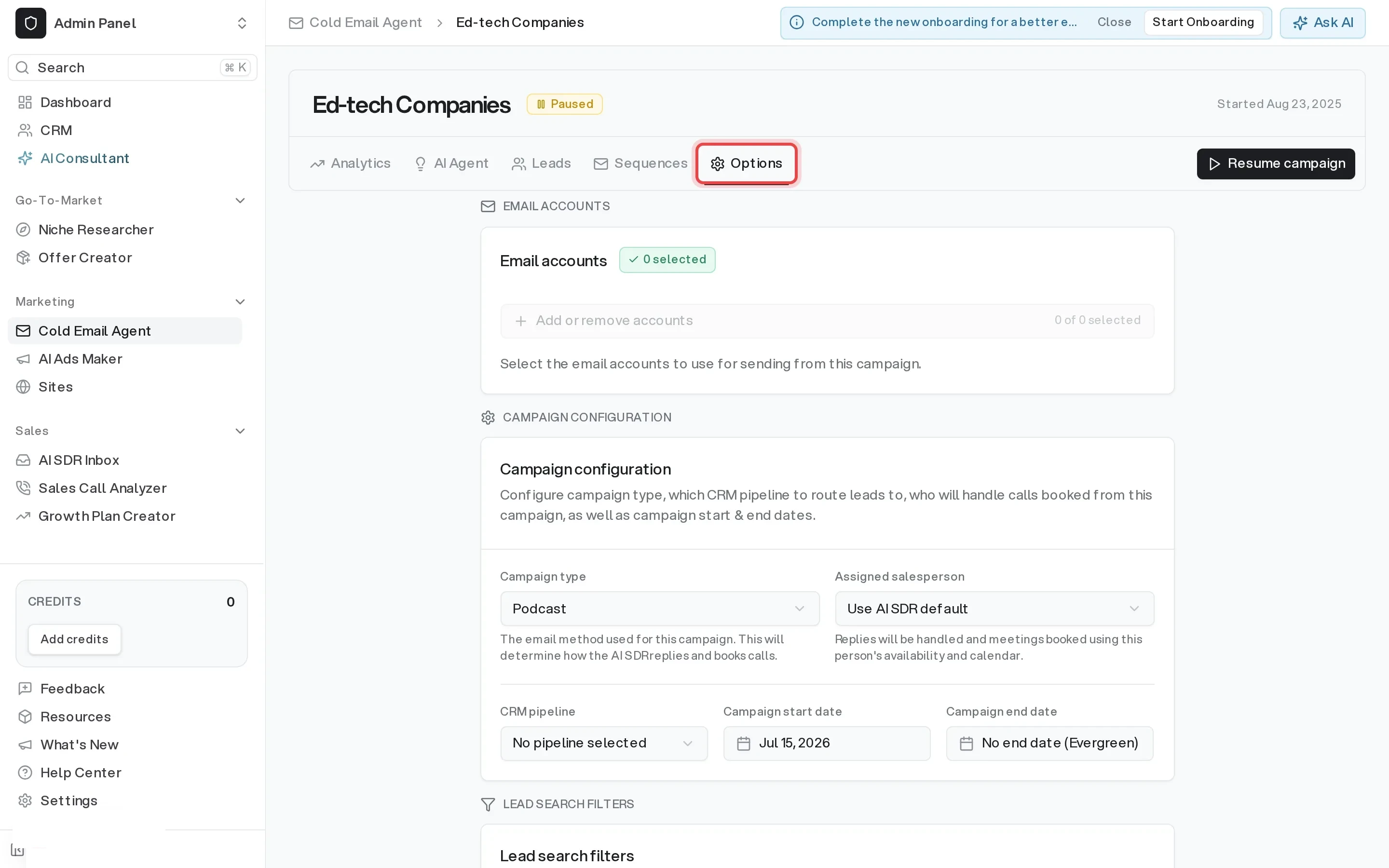
Open the campaign's Options tab
From your campaign, click Options in the top navigation.
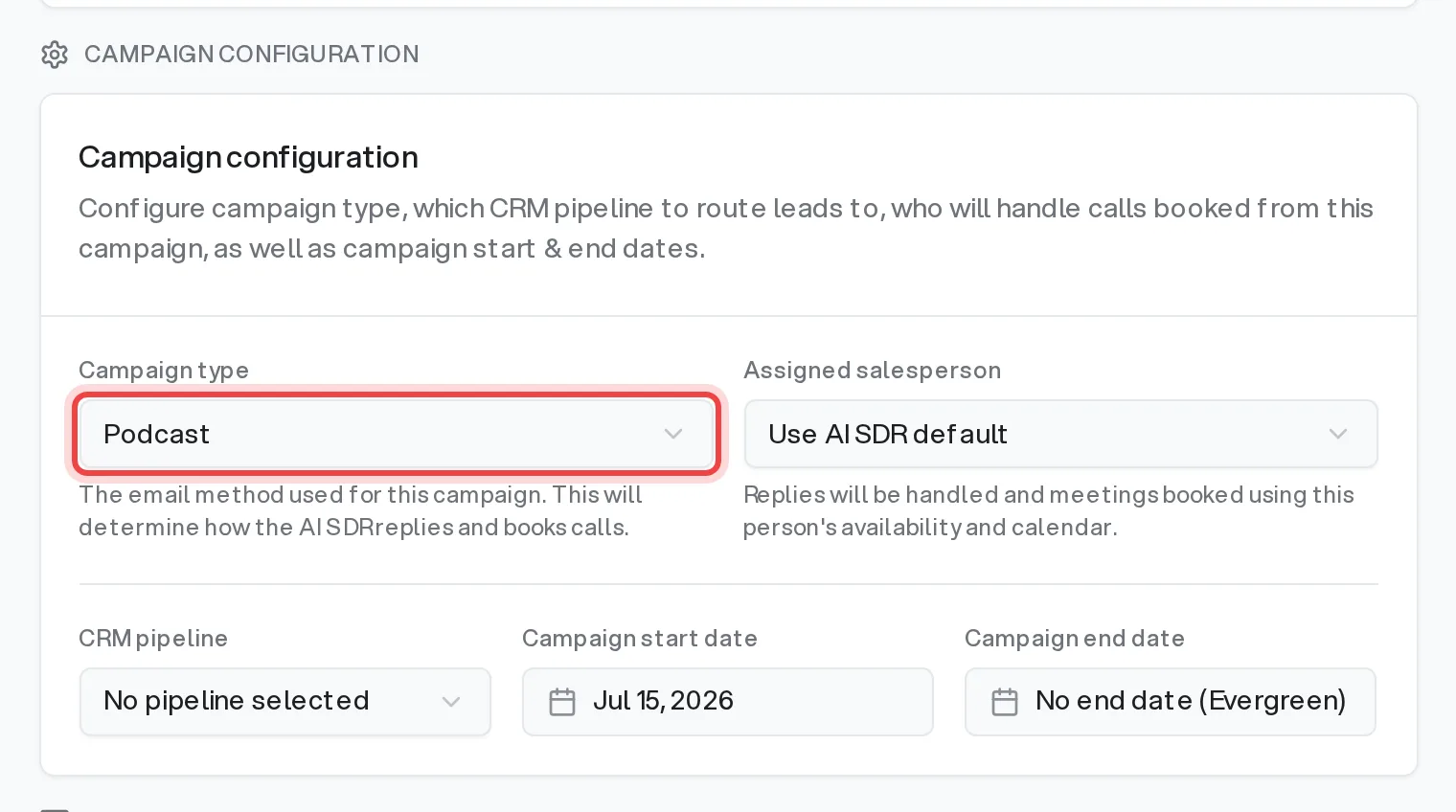
Find the Campaign configuration section
Scroll to the Campaign configuration section and locate the Campaign type dropdown.
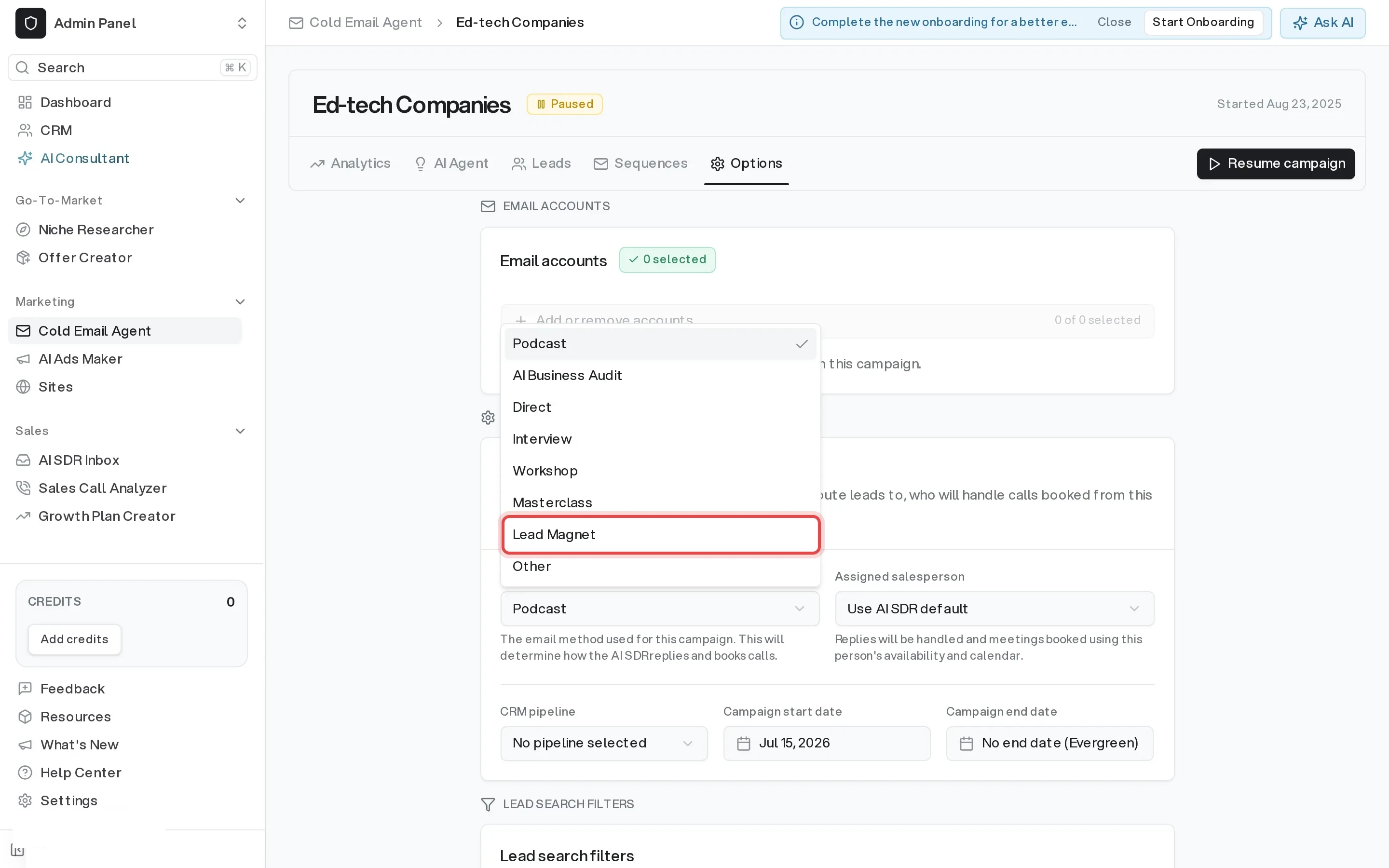
Choose Lead Magnet
Open the dropdown and select Lead Magnet. A new Lead Magnet Resource card appears below.
Save the campaign type
Scroll to the bottom of the Options tab and click Save settings. The Lead Magnet Resource card saves separately, so save here even if you've already attached your resource.
Attaching your resource
Every Lead Magnet campaign needs exactly one resource, the asset the AI SDR will share. A Lead Magnet campaign can't be activated until you attach one. Add it in the Lead Magnet Resource card.
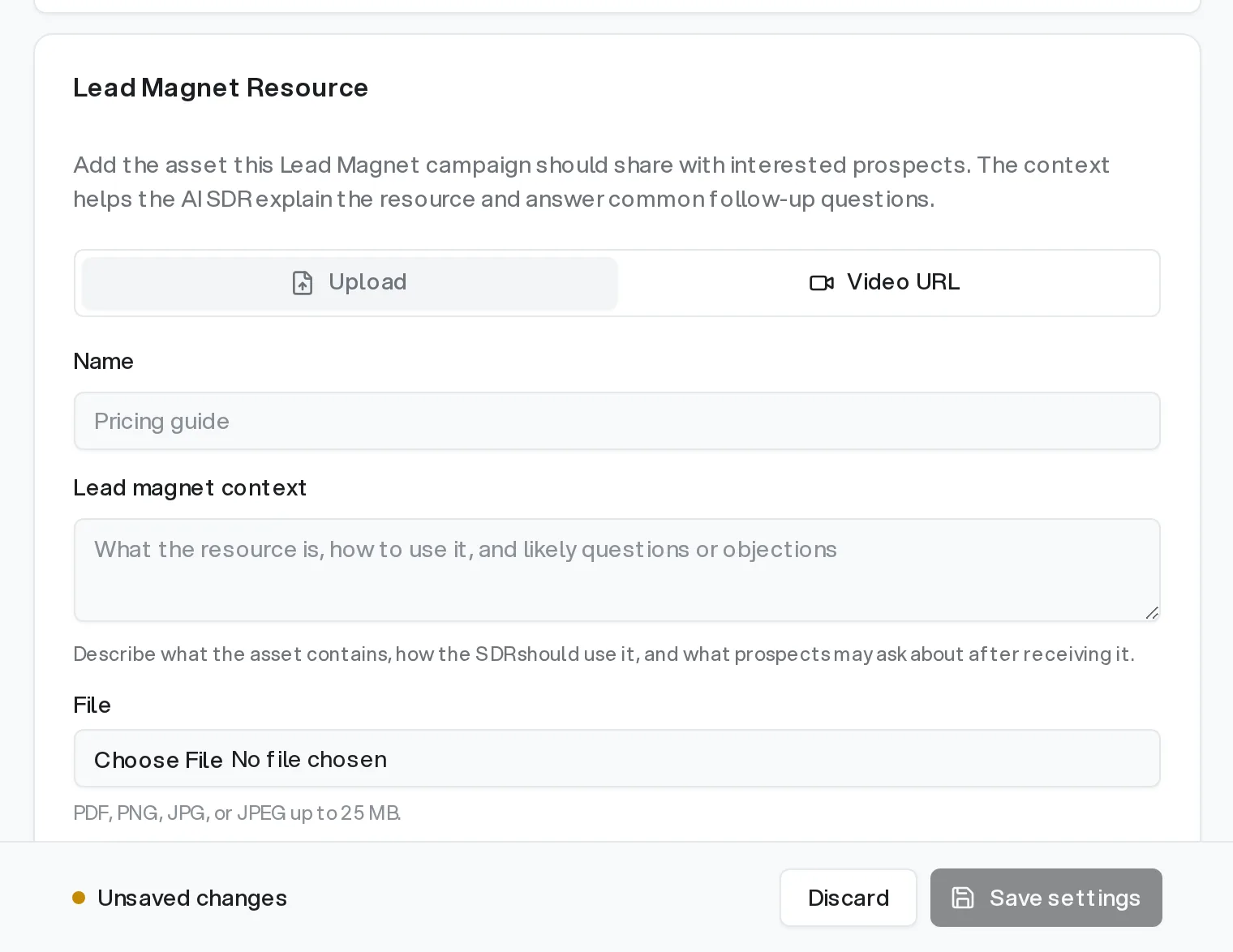
There are two ways to add it, using the toggle at the top of the card:
- Upload. A file from your computer. Accepts PDF, PNG, JPG, or JPEG, up to 25 MB.
- Video URL. A link to a Loom, YouTube, or Vimeo video. The link must start with
https. Don't paste a link to a PDF or image here. Upload those as files instead.
Then fill in:
- Name. Optional. A short name for the resource, like "Pricing guide" (up to 200 characters). Leave it blank and we'll use the filename.
- Lead magnet context. Describe what the asset contains, how the AI SDR should use it, and what prospects might ask about after they receive it (up to 1,000 characters). This is what lets the AI explain the resource and answer follow-up questions naturally.
Click Save Resource to attach it. To swap it out later, use Replace Resource. If you only want to change the context, Save Context updates that on its own. It appears once a resource is attached, and enables as soon as you edit the text.
If you remove the resource from a campaign that's currently active, the campaign pauses until you link a new one. You'll be asked to confirm before this happens. The AI SDR can't run a Lead Magnet campaign with no asset to send.
What the AI SDR does with it
Once the campaign is running:
- When a prospect replies with interest, the AI SDR sends your resource instead of pushing to book a call.
- After a delay you set, it sends a warm, low-pressure follow-up, checking whether they had a chance to look at it and offering to walk them through it.
You control two settings for this behavior under Settings → AI SDR Agent, in the section called The Lead Magnet Method:
- Booking call type. If a prospect does want a call, this is the type of call the AI SDR books for your Lead Magnet campaigns. Defaults to Intro.
- Follow-up delay. How many days after sending the resource the first follow-up goes out. Choose 1 to 30 days. Defaults to 3.
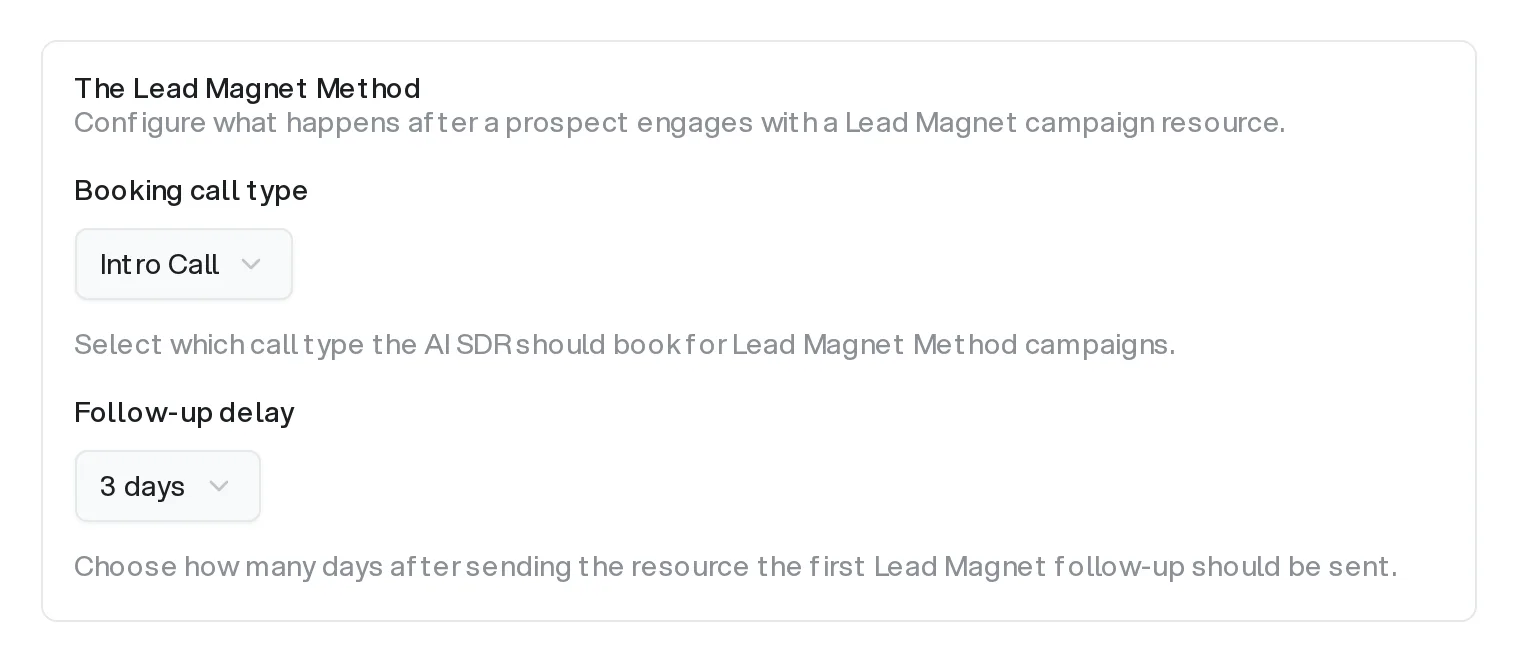
These settings apply to all of your Lead Magnet campaigns.
You'll know it worked when
- The Campaign type dropdown on the Options tab shows Lead Magnet.
- The Lead Magnet Resource card shows your attached asset with a badge of PDF, Image, or Video.
- The campaign is active and sending.